.png&w=96&q=75)
Two-factor authentication comes to Quave ONE
Optional TOTP MFA, per user and enforceable account-wide, without ever locking a legitimate user out.
Hey,
Quave ONE is growing, and the security requirements grow with us. We already host public companies, large enterprises, and companies handling health data, including companies with ISO 27001 and SOC 2, and we are always expanding and getting better.
Two-factor authentication is one more step in that direction, and this one started with a conversation with a potential customer this week.
Quave ONE has always been passwordless. You log in with a short-lived email code or through SSO (GitHub, or Microsoft AD on Quave ONE Connect Full Private), so there is no password to phish, reuse, or leak, and I really like that design. But if you ever filled an enterprise security questionnaire, you know there is one line that does not care about design arguments: "Do you support MFA? Yes / No."
Now the answer is an unambiguous yes. You can add an authenticator app as a second factor on your own account, and admins can require it for everyone in the account.
This is the magic of no technical debt and no bugs: we can add features in hours or even minutes. A happy customer, and a huge satisfaction in working on our own platform.
Turn it on
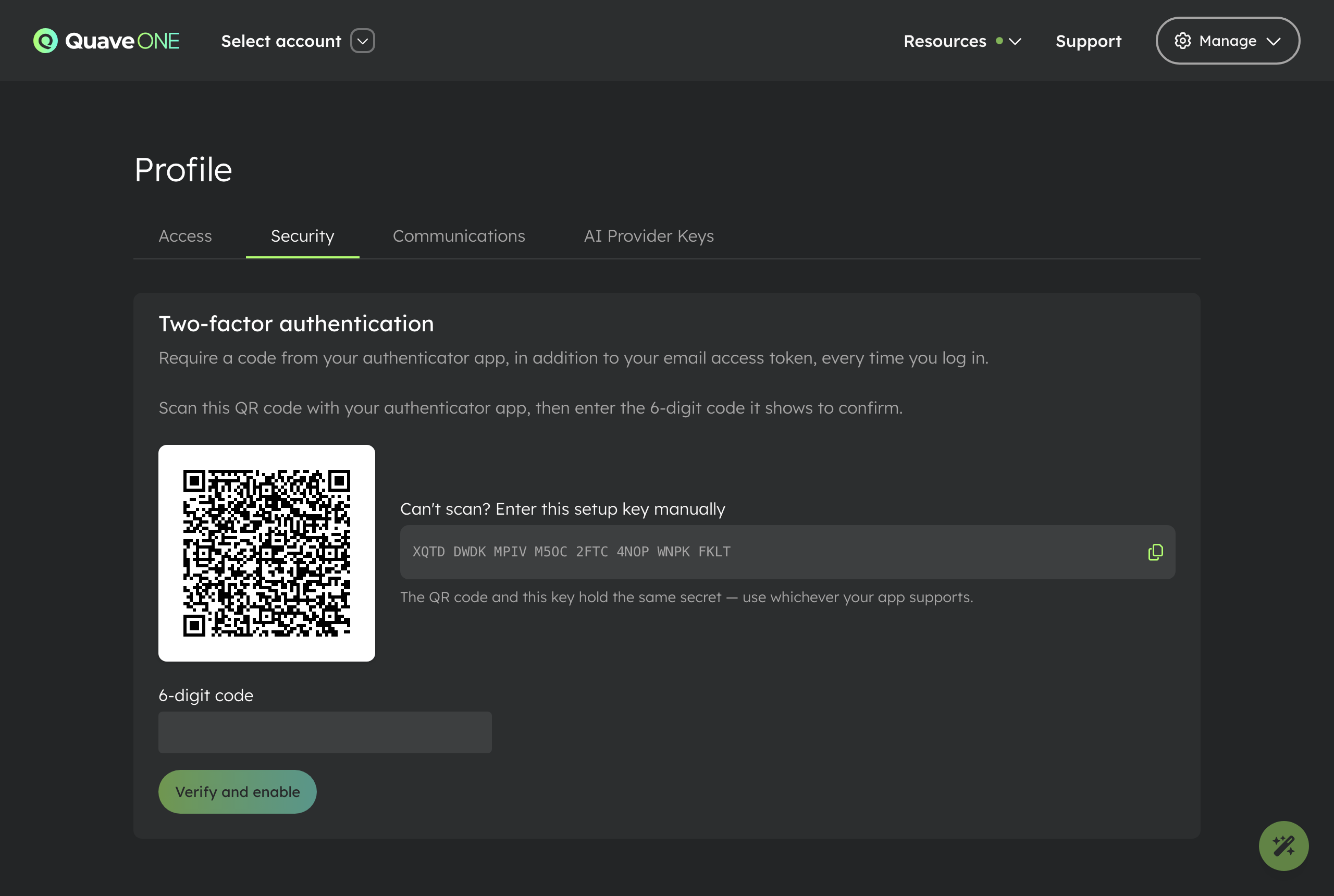
Go to Profile → Security and click Set up authenticator app. Scan the QR code with 1Password, Google Authenticator, Authy, whatever you already use, or copy the setup key by hand, then enter the 6-digit code once to confirm, and you are done.
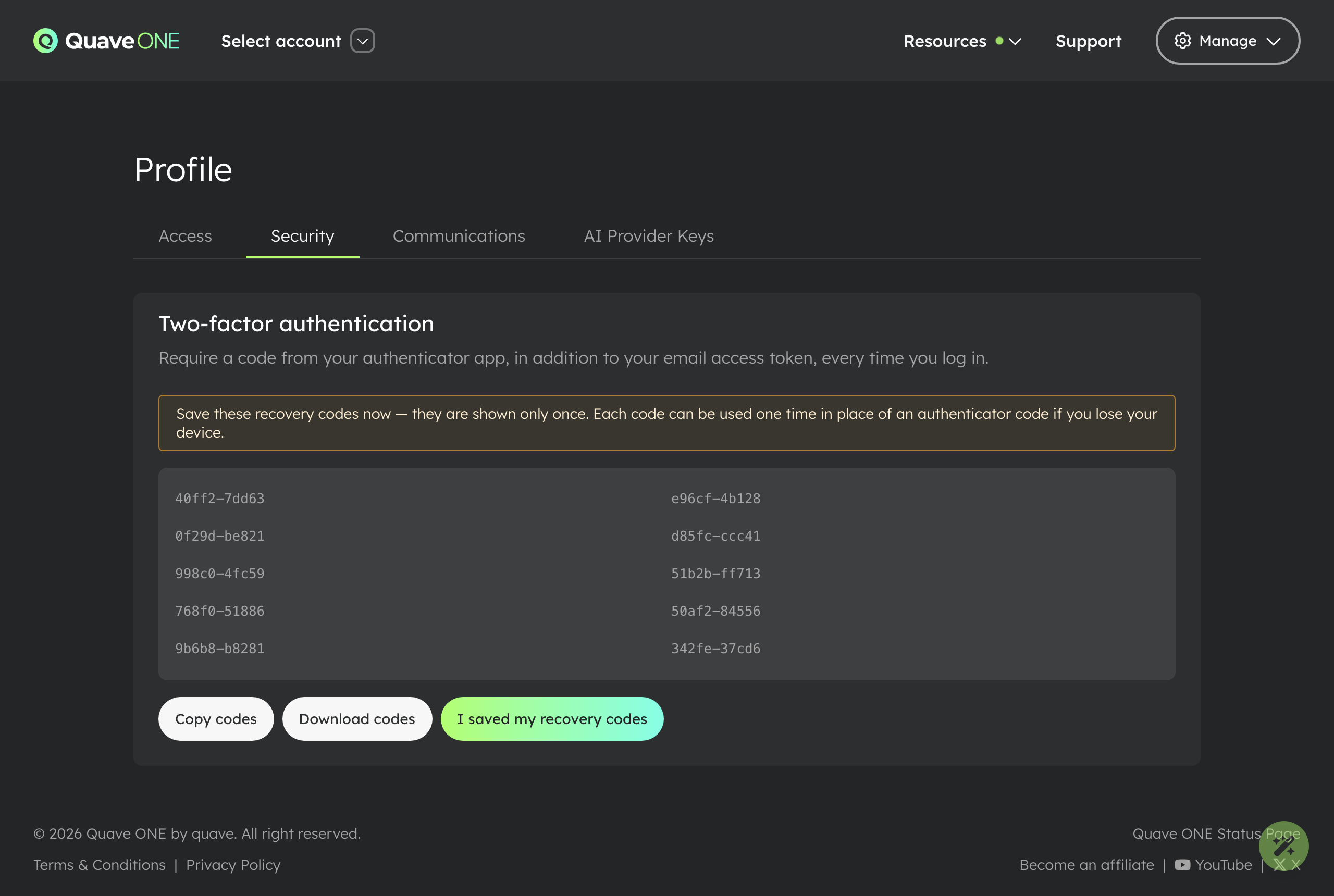
The moment you enable it, we show you a set of single-use recovery codes. Save them somewhere safe, each one gets you back in if you lose your device.
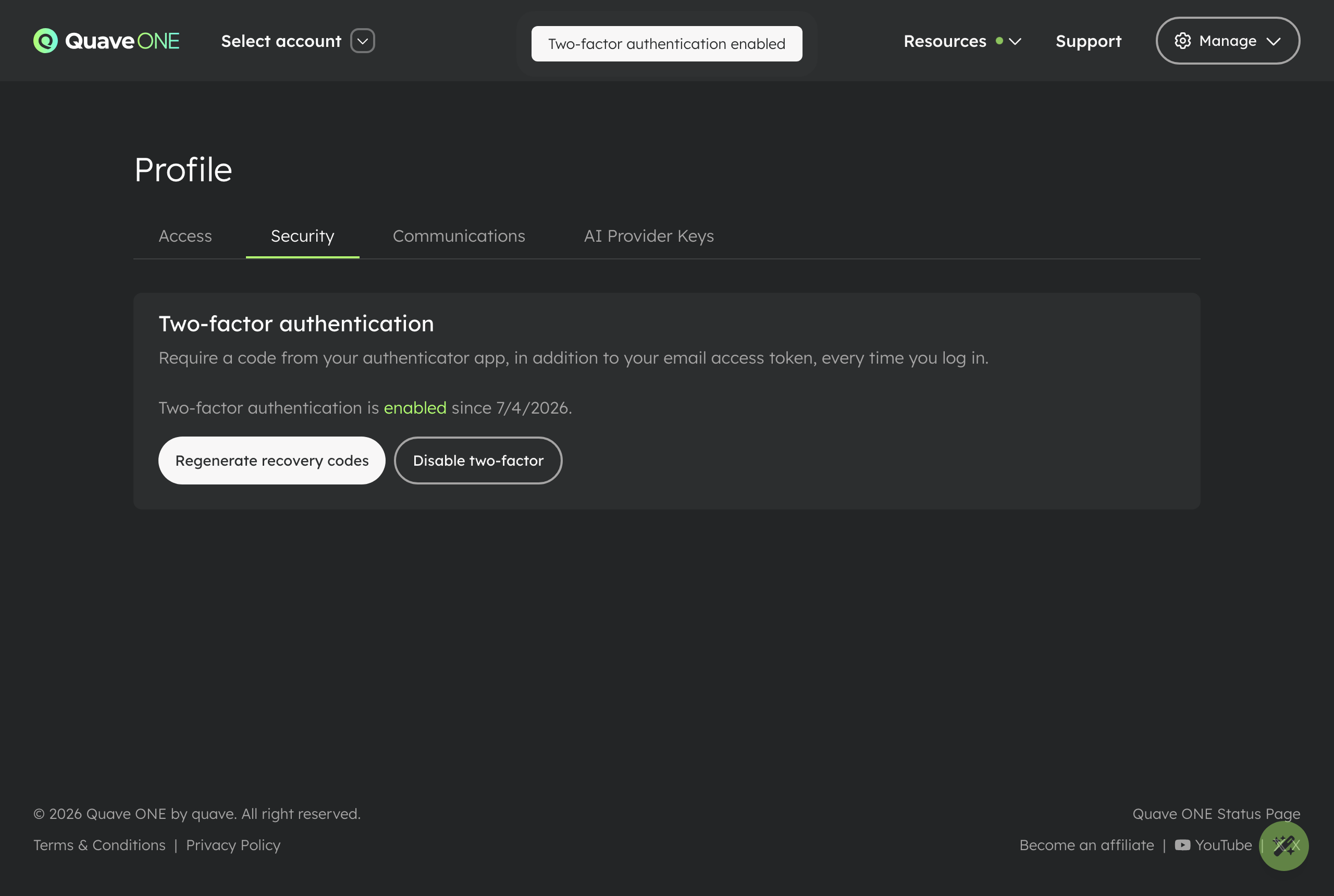
From then on, two-factor is active on your account, and you can regenerate the recovery codes or turn the factor off from the same screen at any time.
Require it for your whole team
Account admins can flip a single switch under Members → Access Control and two-factor becomes required for every member. The members list shows each person's coverage at a glance, and members who sign in through SSO count as covered because they already inherit their identity provider's MFA.
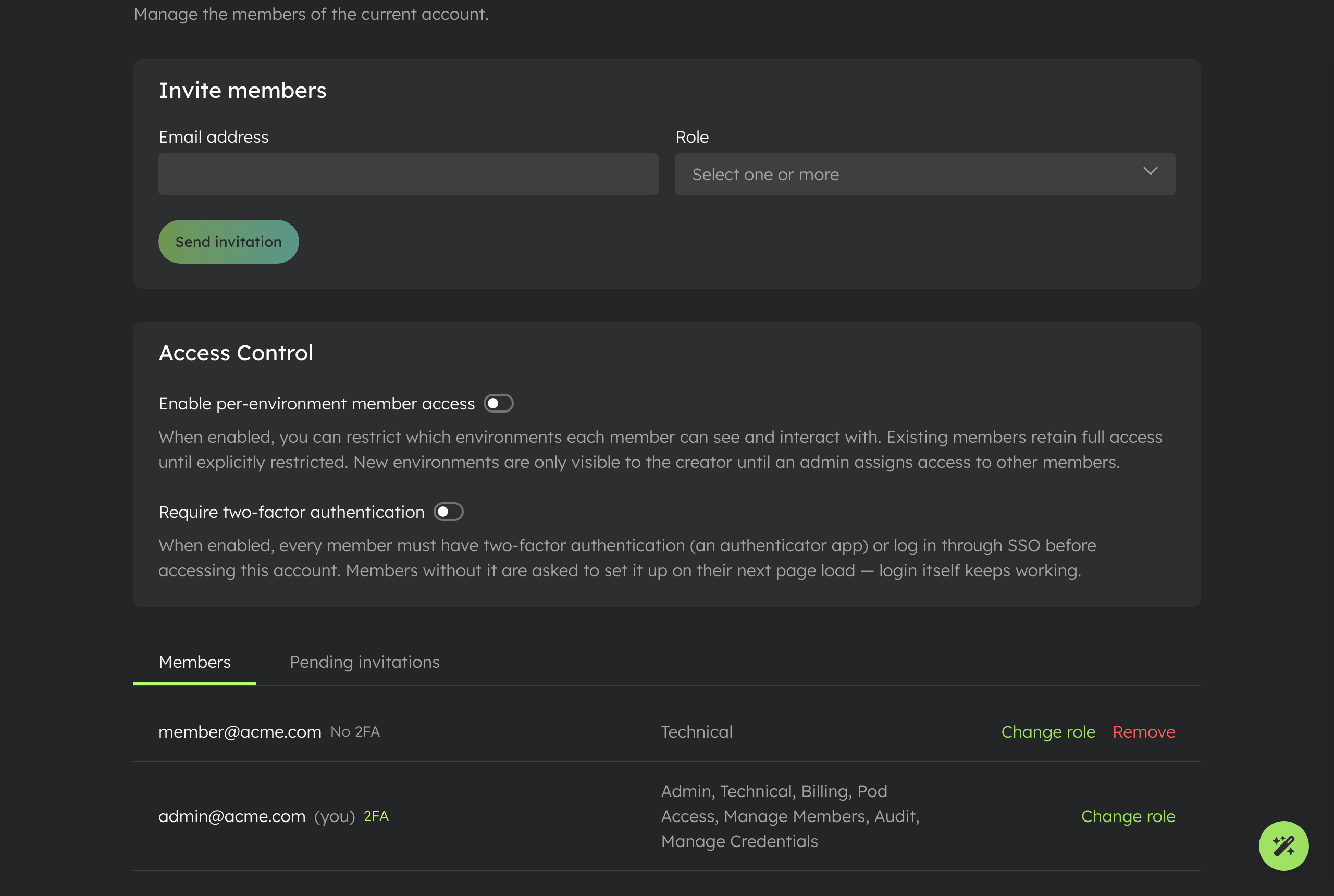
Before you turn it on, we tell you exactly who still needs to set it up, so there are no surprises for your teammates.
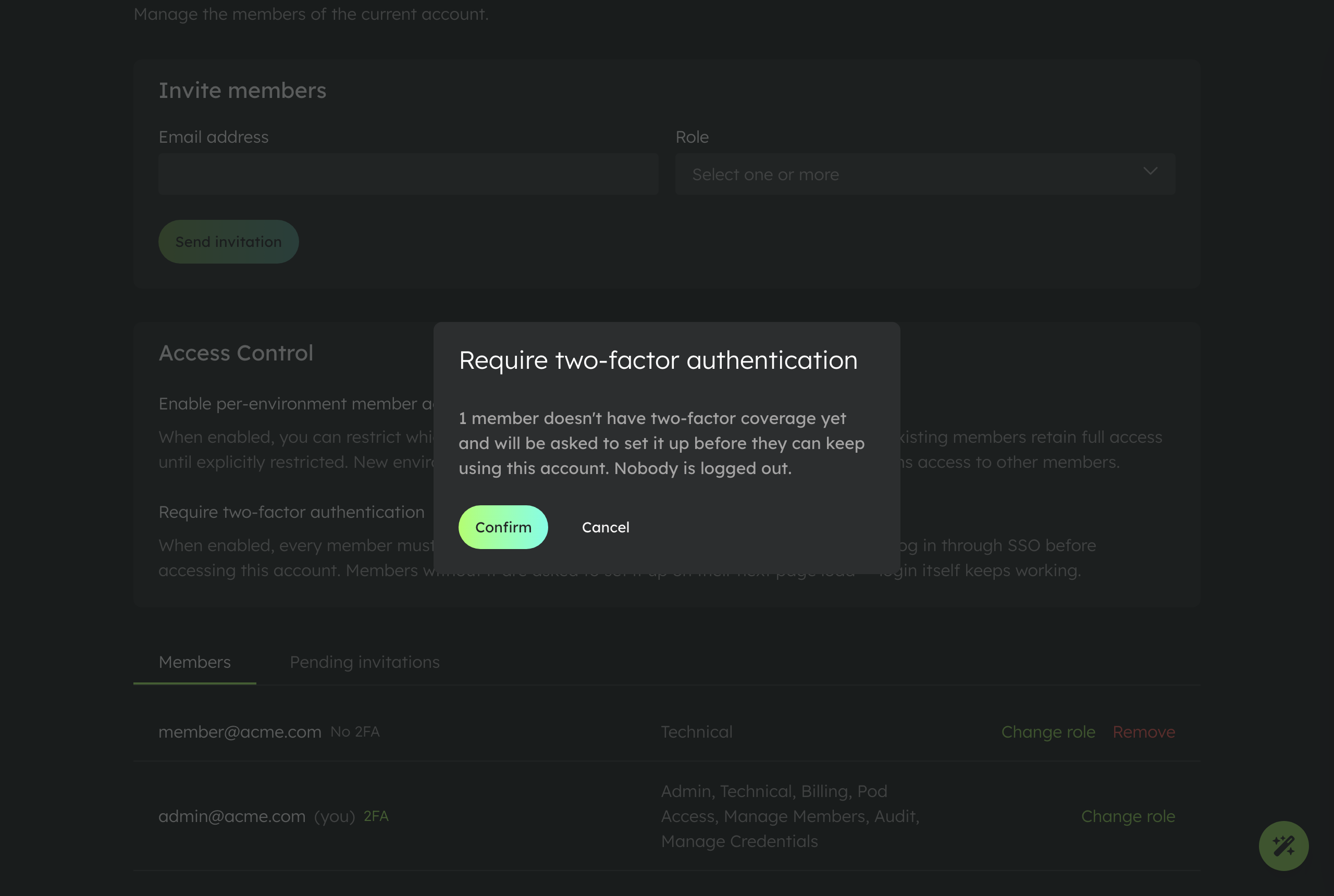
But what happens to the member who doesn't have it yet?
This is the part I care about most. Enforcement is not a login wall. A member without two-factor can still sign in, they just land on a full-screen prompt to set it up before they reach the account's content, they finish the same flow you did, and they continue right where they were. No support ticket, no admin intervention.
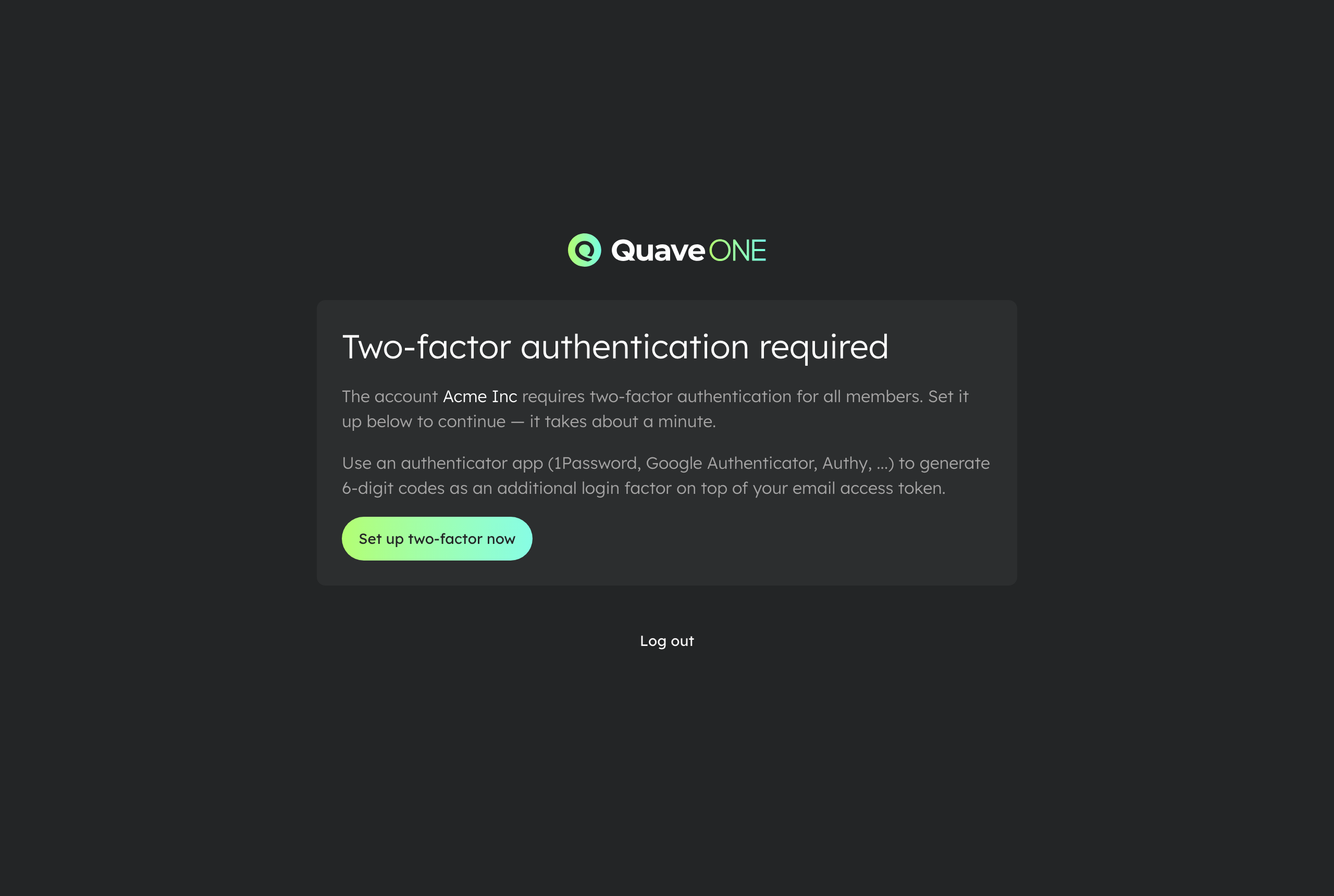
And if someone loses their phone? They use a recovery code, regenerate a fresh set from their profile, or, as a last resort, our support team resets their two-factor after verifying their identity.
At login
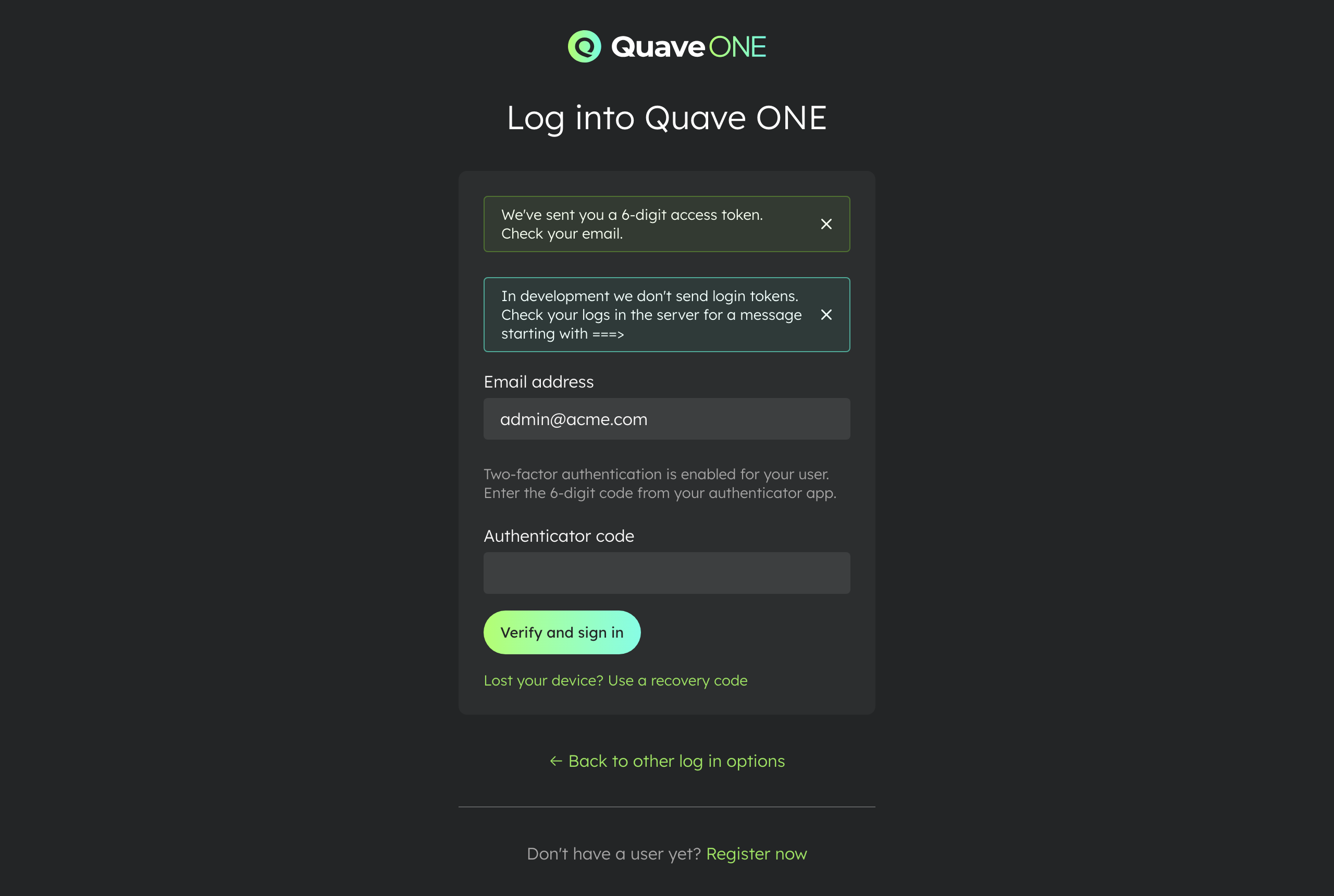
With two-factor enabled, signing in adds one quick step after your email code: the 6-digit code from your authenticator app (or a recovery code). That's it.
Small things we did on purpose
- If you already use two-factor and you create a new account, the new account
starts with enforcement on. Secure defaults should spread by themselves. - Recovery codes are single-use and stored hashed, never in plain text.
- Everything lands in your account's activity log: enabling, disabling,
enforcement changes, and resets.
Two-factor authentication is live now for every Quave ONE account. Open Profile → Security and turn it on, it takes about a minute, and the next time that questionnaire shows up you just check the box.
Have fun!